Shared memory for your tasks and AI tools.
Keep run results, working notes, and reference documents in one folder. Read and update it from qbash tasks, Claude Code, ChatGPT, and other MCP clients. Turn on AI search when you want a knowledge base, too.
Documents you can open, edit, and share.
Write Markdown, upload documents, and organize related work in subfolders. The content stays available after the task or conversation ends.
Keep what each task run produces.
A weekly reporting task saves its findings in a folder. The next run reads the previous report, a teammate reviews it, or another task uses it to prepare a brief. The result has a home beyond the run log.
Read a document by name, attach metadata such as a customer or project, and create or update records from Python. Select the folder under Resources → Memory in the task editor.
Memories in tasks# Store this run's report in the selected folder. result = qbash.memories.store( name=f"Weekly report — {qbash.run.execution_id}", content=report, folder="Reporting", ) # Includes pending_review when the folder requires it. qbash.output(result)
The task writes to its attached Reporting folder.
Your documentation, in the tools people use.
Put product documentation, runbooks, or metric definitions in a folder and add it to an MCP server. People can consult the same material from Claude, ChatGPT, Claude Code, Codex, and other compatible clients.
Choose which tools to expose. A documentation server can offer read access; a team server can also let agents create notes and update findings. You can package the folder alongside tasks and connector tools.
Share a memory folder through MCPGive the next session somewhere to start.
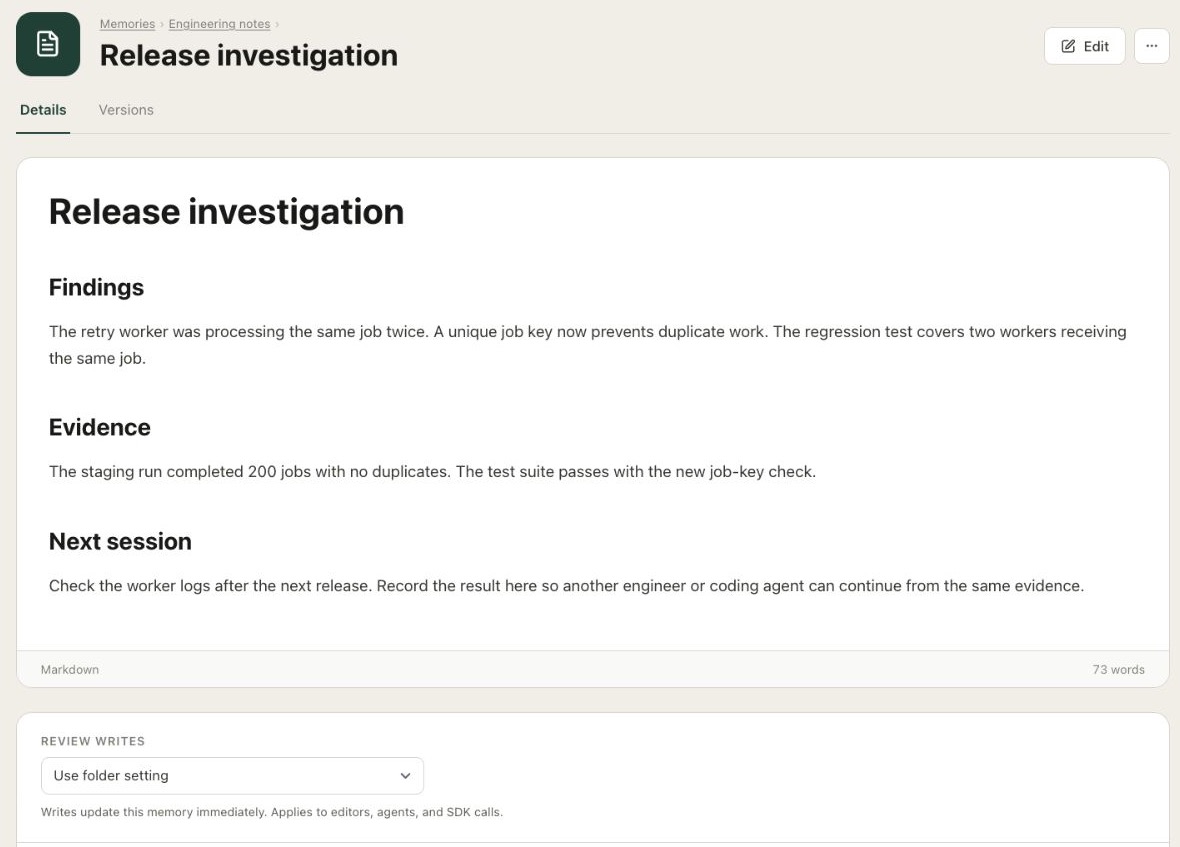
A team using Claude Code can share architectural decisions, test evidence, and unfinished work in one folder. A colleague’s agent can read the same documents, add its findings, and leave a useful handoff. The folder also works across different MCP clients.
Ask the agent to save what matters and retrieve it when work resumes. A named document keeps the goal, sources, and next action together, ready to check against the current code.
Shared memory and session handoffsA knowledge base from the documents you already have.
Turn on Searchable by AI and qbash builds the retrieval index as documents are processed. Add Markdown, PDFs, office documents, or text files. Search can then find relevant information even when the question uses different words.
qbash extracts searchable chunks and facts, and links matches to their source records. Inspect a document’s Chunks tab, then retrieve relevant material from a task, a connected agent, or qbash chat. qbash handles indexing and search for this RAG workflow.
Enabling RAGIllustrative search across a folder’s documents.
Review the knowledge your team relies on.
Working notes can update directly. For a runbook or shared policy, require review before a text change is published. Edits from people, tasks, and agents become pull requests; readers continue to use the accepted version.
Compare the proposed text, edit it, and accept or reject each change. Document history lets you inspect published revisions. Set the policy for a whole folder or an individual document.
Reviewing memory changes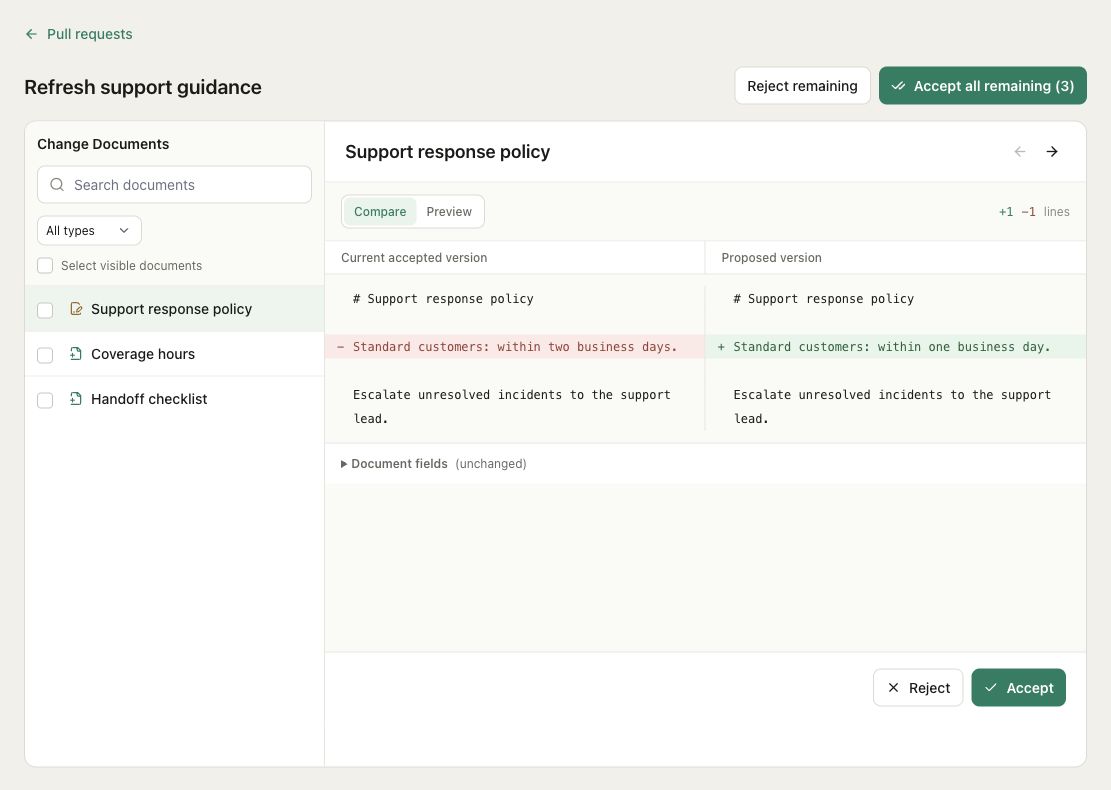
Questions about Memories
Do I need AI search to use a memory folder?
No. A folder can hold Markdown documents and uploaded files without a search index. Tasks and agents can retrieve named records, list documents, and write updates. Turn on Searchable by AI when you want retrieval by meaning; qbash processes the documents in the background.
Can I share a folder without letting an agent change it?
Yes. Add the folder to an MCP server and enable only the read tools you want to offer. Server access and folder access are separate: a server makes the selected tools available using the access of the person who added the folder. Use a separate server with write tools for collaborators who should maintain it.
Does this sync the built-in memory of Claude or ChatGPT?
Each client keeps its own native memory and conversations. qbash provides shared documents that connected clients can read and update through MCP. Ask the agent to retrieve the relevant documents and save useful findings; connecting a server does not automatically save or recall every conversation.
Do I have to build a task first?
No. Create a folder, add documents, and share its built-in tools through MCP. A task is useful when you want to collect information on a schedule, generate reports, or control how content is read and written.
Can I review changes before other people use them?
Yes. Require review for a folder or an individual text document. Writes from people, tasks, and agents become pull requests, and readers continue to receive the accepted version. Document history records published changes. Review is optional and currently supports text documents.
Give useful work a place to stay.
Start with a folder of documents. Connect it to your tasks and AI tools when you are ready to put it to work.