Using memories
Memories give people, tasks, and agents a shared place to keep knowledge. A task can save its results, Claude can consult your team's documentation, and several Claude Code users can contribute to the same project notes. The documents live in qbash, where you can edit them and review their history.
There are two main uses for a memory folder:
- Collaborative documents. A collection of Markdown documents that people, tasks, and agents in tools such as Claude Code, Codex, or Grok Bot can read and update. Use it to share context, maintain contact notes, or continue work started in another session or application.
- Searchable knowledge. A collection of Markdown documents and uploaded files, including PDFs, PowerPoint presentations, and Excel spreadsheets. Enabling RAG turns their contents into a knowledge base that agents and tasks can search for relevant passages.
Both start with the same folder. Enabling RAG adds search by meaning; the documents can still be read and updated directly.
Distribution covers using a folder with AI applications through MCP, sharing work between agent sessions, and reading or writing memories from a task.
Folders and documents
Open Memories and choose New Folder. Give it a name, such as Engineering notes or Support knowledge. The optional Searchable by AI setting enables RAG; you can leave it off and enable it later.
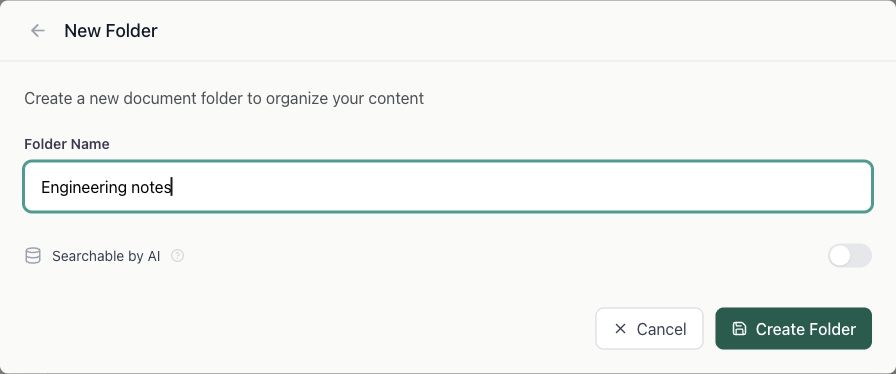
Inside the folder, New Document → Write a Document opens the Markdown editor. Upload Files adds existing files, preserving the originals and extracting their text. Each uploaded file becomes a document in the folder. Tasks and agents can also create documents, so the collection can grow as they work.
A document has a name, content, and optional metadata. Metadata gives you a way to find related documents later - for example, all notes with account: acme or all reports with report_type: weekly. The SDK and memory tools sometimes call a document a record; its ID identifies that document even if its name changes.
New Subfolder organizes a larger collection. The root folder's Search Scope settings control which subfolders are included in its search. Archived documents are hidden from the file list by default; Show archived reveals them.
Enabling RAG
RAG - retrieval-augmented generation - lets an agent find relevant material from your documents and use it when answering. A support agent, for example, could find your duplicate-billing policy and a related resolution without reading every file in the folder. Search matches meaning, so the question does not need to use the document's exact wording.
Enable Searchable by AI when creating the folder, or open its Settings, turn the setting on, and choose Save. qbash queues the existing documents for indexing and keeps the index updated as documents are added or accepted changes are published.

qbash extracts text from uploaded files and indexes the documents as searchable passages. You can inspect the indexed content in a document's Chunks tab. The folder's optional Vector Description supplies context during indexing; an individual document's Search Summary can provide focused text for its search index.
Indexing runs in the background. Published Markdown can be read immediately, while uploaded files first need text extraction. Semantic search may briefly return an older accepted passage after an edit. Pending review proposals are not indexed. Check the document's processing status if expected content is missing.
Enabling RAG does not automatically load the folder into every conversation. An agent uses its memory search tools, or a task calls qbash.memories.vector_search(...), to retrieve context when it needs it. Exact lookup and ordinary keyword search also remain available. See reading and searching from a task and the memory tools.
Version history and review
qbash keeps a version history of published document changes. Open Versions on a document to see who changed it, read an earlier version, or compare edits.
For material such as shared runbooks or policies, you can optionally require acceptance before an update is published. People, tasks, and agents then submit pull requests while readers continue receiving the last approved version. Reviewing PRs explains the folder policy, individual document overrides, and reviewing a proposal.