MCP Servers
An MCP server lets you combine qbash tasks, connector tools, and memory folders, then distribute them to the applications your team uses. The same server can be used from ChatGPT, Claude, Grok Bot, Codex, Claude Code, Cursor, VS Code, or an application you build that supports MCP.
You might want several agents to share research, give your team access to a connector from different coding assistants, or distribute a task whose workflow you've already written in Python. These can all live on one server. qbash hosts it and runs the tools in the cloud; you don't need to install or maintain a server on each person's computer.
To use qbash from a client without building a server first, connect the official qbash MCP server. It serves your tasks, memories and the task builder at one URL.
MCP - Model Context Protocol - is how those applications discover and call the tools. It is one way to distribute a task; tasks can also run through APIs, schedules, and triggers without an MCP client.
Creating a server
Open MCP Servers → New server and give the server a name, such as Research tools. qbash suggests a URL slug based on the name and shows the full address you'll use when connecting an application.
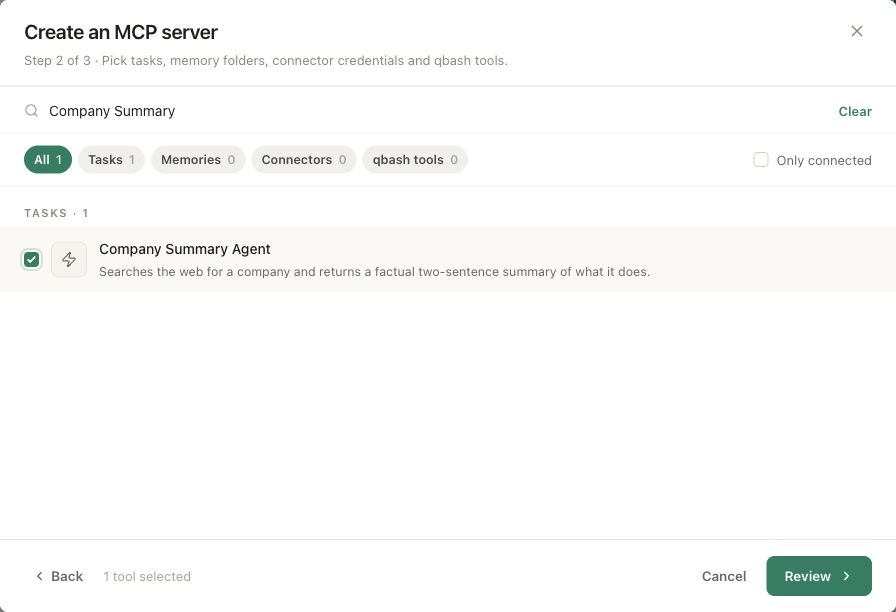
Choose Add tools. Search or filter for the tasks, memory folders, and connector accounts you want to include. You can select several of each; there is no need to create a separate server for every connector or task.
Memory folders
A memory folder is a collection of documents that agents and people can share. Research saved by an agent in Claude Code can be read later in Codex or ChatGPT. A team can use the same folder for shared notes, runbooks, or instructions instead of keeping a separate copy in each application.
Include read tools when the folder should be reference material. Include write tools when agents should also contribute documents or update them. You choose those tools on the Review step. If the folder has Searchable by AI enabled, its semantic search tools are available too.
Tasks
A task lets you distribute an automation you've written in Python, with prompts or agents used where the work needs AI. The calling assistant supplies the task's inputs; qbash runs the code and returns the value from qbash.output(...). The assistant doesn't have to work out the process again on every request.
For example, a task could research a company, prepare a report, or draft a LinkedIn post from supplied notes. The same task can be called from a chat application, a coding assistant, or another agent.
Tasks are also useful for giving an agent a controlled way to use a connector. You could write a task that searches Gmail and returns relevant messages, then expose only that task. The caller can use your search workflow without receiving Gmail's send or delete tools. The task uses its attached Gmail connection directly; you don't need to add the Gmail connector to the server as well.
Connector tools
Adding a connector lets the receiving assistant call that service directly - for example, look up issues in Linear or retrieve market data from Massive. Select the connected account you want the server to use. If you haven't connected it yet, Add credential opens the connector's setup.
The connection stays in qbash, so your team can use its tools from different applications without copying the provider's credentials into each one. On Review, you can turn individual operations on or off. Use a connector directly when the assistant should choose the calls; wrap it in a task when you want your code to control the sequence, validate inputs, or limit what is returned.
qbash tools
The picker also includes general qbash tools for Memories, Connectors, Tasks, and File Reader. These let an assistant work with qbash itself: find available tasks, build and test them, work with memory documents, or read files returned by a task.
These tools use the connecting person's own qbash access. That differs from adding a specific memory folder or connector account for the server's users to share.
Reviewing tools and instructions
Choose Review to see everything you've selected. Expand a memory folder or connector to inspect its tools. Read selects its read tools, Write selects its write tools, and the individual switches let you make a more specific selection. For a research server, you might allow reading notes and looking up issues without allowing either to be changed.
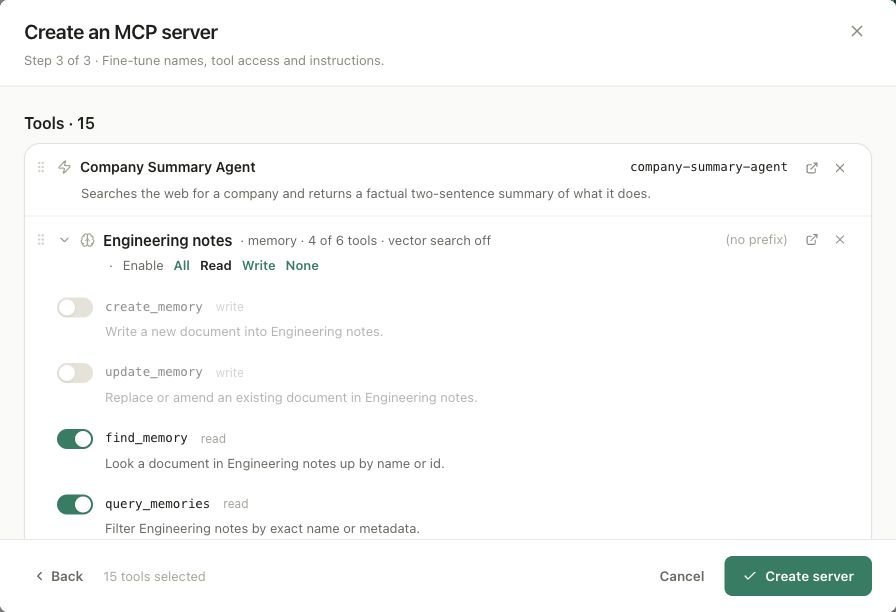
Tool names and descriptions are what the receiving assistant uses to decide which tool to call. You can edit them here without renaming the original task or connector. Prefixes help distinguish tools when you include more than one account or folder with similar operations.
Instructions gives the assistant context for using the tools together. You could explain which task produces a company summary, which folder holds shared research, and when to look up an issue. Instructions guide the assistant; the enabled tools and their permissions control what it can actually do.
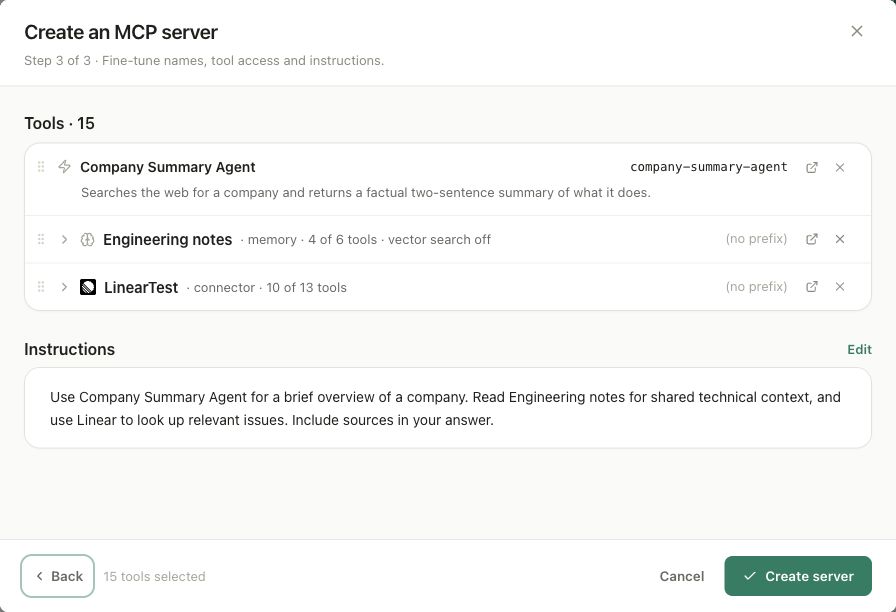
Choose Create server when you're ready. You can return to the Package tab to add or remove sources, change tool access, or edit the instructions. These changes apply to the live server; a connected application may need to refresh its tools or reconnect to see them.
Preview on the Package tab shows the tool names, descriptions, and inputs an application receives. It also has a JSON view for checking the tool definitions. The preview is built for your account; general qbash tools may expose different resources to someone with different access.
Connecting applications
Open Connect and choose the application you want to use. The tab provides client-specific instructions, install links, or configuration with your server address already filled in. Other covers clients without a dedicated setup option, including applications you build yourself.
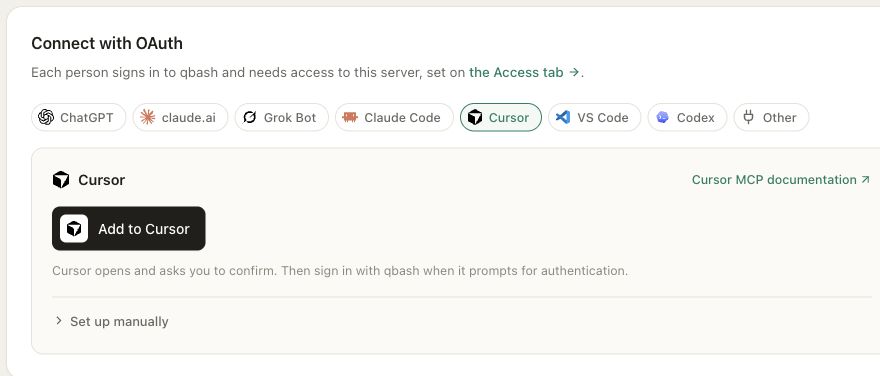
With OAuth, each person signs in to qbash and authorizes the connection from their application. They need access to the server, which you manage on Access. They can connect that same server to several applications; there is no need to create a copy for each client.
For clients or scripts that use an access token, create one on Connect and use the setup shown there. The value is only shown when it is created. A token is limited to this server, acts as the person who created it, and stops working if that person's access is removed. Keep it private rather than sharing one person's token with the whole team.
Once connected, ask the assistant for something the server can do. In the Grok Bot walkthrough, Alex first asks for market data from a Massive connector, then asks the assistant to pass that data to a task that drafts a LinkedIn post. The connector and task are on the same server, and the same tools can be used from another supported application.
Sharing with your team
On Access, keep the server Private for yourself and individually invited users, or select Organization so anyone in your qbash organization can connect. Individual shares can grant Can connect or Can connect and edit; the latter also allows changes to the server's tools and instructions.
Sharing a server grants access to the operations you've included. A selected connector account or memory folder uses the access of the person who added it, limited to the enabled tools. For example, enabling a folder's write tools lets the server's users update it through their assistants. They don't receive the connector credentials or permission to edit the underlying task code just because they can call its tool.
If the person who added a folder or connector loses the necessary access, that source stops serving tools. A connector that needs reauthentication must be reconnected before it can be used again. General qbash tools continue to use each caller's own permissions.
People can revoke their own tokens on Connect. Server managers can review and revoke tokens across the server on Access.
Logs and settings
Logs shows who called each tool, when it ran, how long it took, and whether it succeeded. Filter by caller, tool, or status, then expand a call for its argument names, response size, authentication method, and any error. The server log does not store argument values or response contents. For task calls, View run opens the task's own run history, where the available detail depends on its data logging setting.
A longer task or connector call may return an execution ID while it continues running. The client can use the server's status tool to retrieve the result. This is separate from a failed call; the protocol reference covers it for custom clients.
Settings lets you change the server's URL slug. Existing clients will need the new address if you change it. Deleting the server disconnects its clients and invalidates its tokens, but leaves the tasks, memory folders, and connector accounts themselves in place.
Protocol reference
If you're writing your own MCP client, use these details to authenticate, discover tools, and handle longer calls. For a supported application, use the setup on Connect.
Custom client protocol details
Endpoint and authentication
Use the exact address shown on Connect. A hosted server has an endpoint in this form:
https://mcp.qbash.com/mcp/execution/<server-slug>
The endpoint uses Streamable HTTP with JSON-RPC 2.0. Send Content-Type: application/json and Accept: application/json, text/event-stream. Negotiate the protocol version with initialize, honor the returned capabilities, send notifications/initialized, and then discover tools with tools/list.
For OAuth 2.1, an unauthenticated request returns a 401 challenge pointing to protected-resource metadata at /.well-known/oauth-protected-resource/mcp/execution/<server-slug>. Follow the authorization-server metadata returned by discovery and request the mcp:tools:call scope. OAuth calls are attributed to the signed-in qbash user.
A server access token uses Authorization: Bearer <token> and acts as its issuing user. It is restricted to that server and stops working when revoked. A qbash password or a provider credential is not an MCP access token.
Tools and results
tools/list returns the currently available tools with unique names of at most 64 characters, descriptions, and JSON Schema inputSchema definitions. Known read-only tools include the readOnlyHint annotation. Refresh the list after package or access changes and use the names and schemas it returns.
Call a tool with its advertised name and an arguments object:
{
  "jsonrpc": "2.0",
  "id": 2,
  "method": "tools/call",
  "params": {
    "name": "prepare_account_brief",
    "arguments": {"account_id": "acct_123"}
  }
}
Results contain an MCP content array of text blocks. A tool failure uses the same result shape with isError: true and an explanatory text block. Authentication and transport failures use HTTP status codes.
Long-running calls
Task and connector calls wait for approximately 45 seconds before returning an active execution. The text result contains JSON such as:
{
  "status": "running",
  "execution_id": "<uuid>",
  "elapsed_seconds": 45,
  "next": "Call check_task_status with this execution_id for the result..."
}
check_task_status is available on servers with Tasks or connector tools. Each call waits for the run to finish and returns the output as soon as it completes. If the run is still active when the wait ends, it returns status, elapsed time and log-line count. The wait is 45 seconds, and it ends early when the same client has another call waiting. Pass wait_seconds to wait less, or 0 to check without waiting. For Task runs, get_task_logs returns qbash.log lines; pass execution_id and an optional non-negative after line count to retrieve only new lines. Connector calls do not produce Task logs.
Task status and log requests must refer to a Task exposed by that server and are subject to retention settings. A connector call's result is available only to the caller who started it on that server.
Server guide
When read_server_guide is advertised, call it before the package tools. Its result includes a guide_token; supply that value wherever the advertised input schema requires it. Editing the guide invalidates the previous token. If a call reports an invalid guide token, read the guide again before retrying. The built-in names read_server_guide, check_task_status, and get_task_logs are reserved.
HTTP errors
| Status | Meaning |
|---|---|
401 | Authentication is missing or invalid, or the user cannot access the server. Inspect WWW-Authenticate for OAuth discovery. |
403 | The OAuth token lacks mcp:tools:call, or the server address does not match the server authorized for the credential. |
404 | The endpoint or server slug does not exist. |
503 | The transport is temporarily unavailable. Retry with backoff. |