MCP Connectors
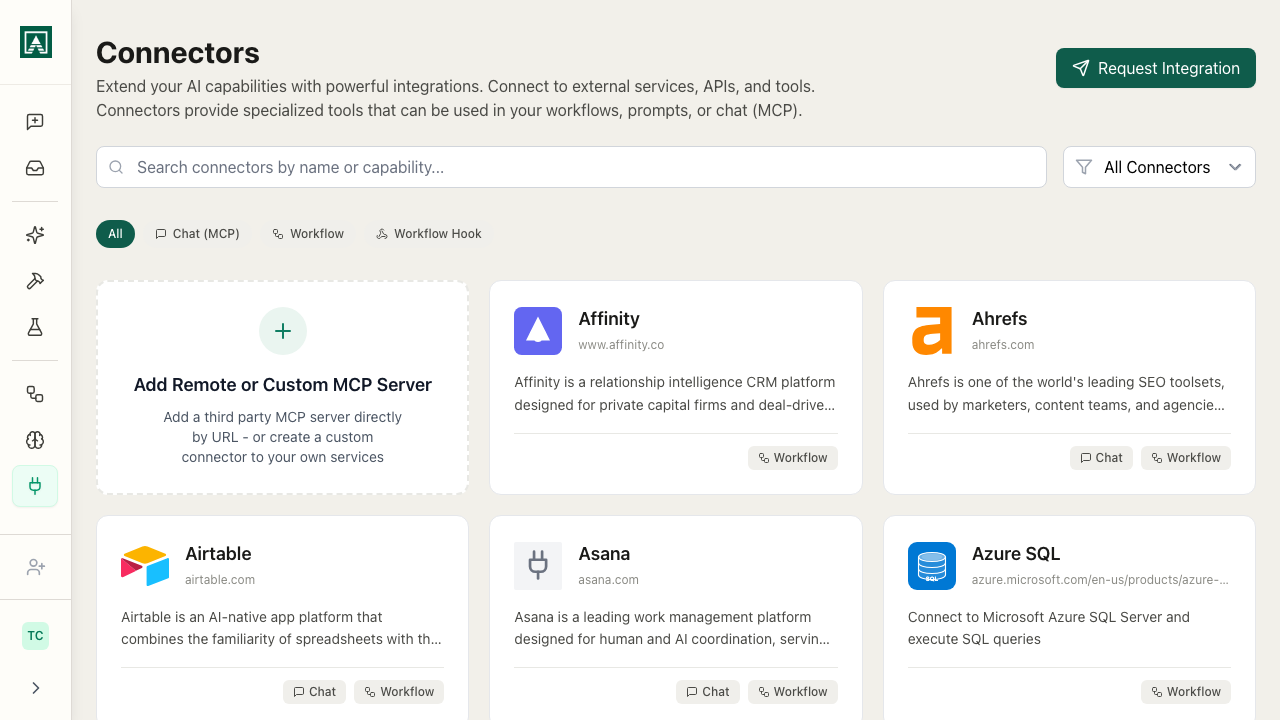
Connectors link qbash to external services - a CRM, a database, a project tool. Once you connect a service, its tools and data become available to your AI work. Under the hood these use MCP (Model Context Protocol): when a connector is active, the model can call its tools and use the results in its response.
A connected service can be used in Tasks and MCP servers, subject to each feature's access controls.
Finding connectors
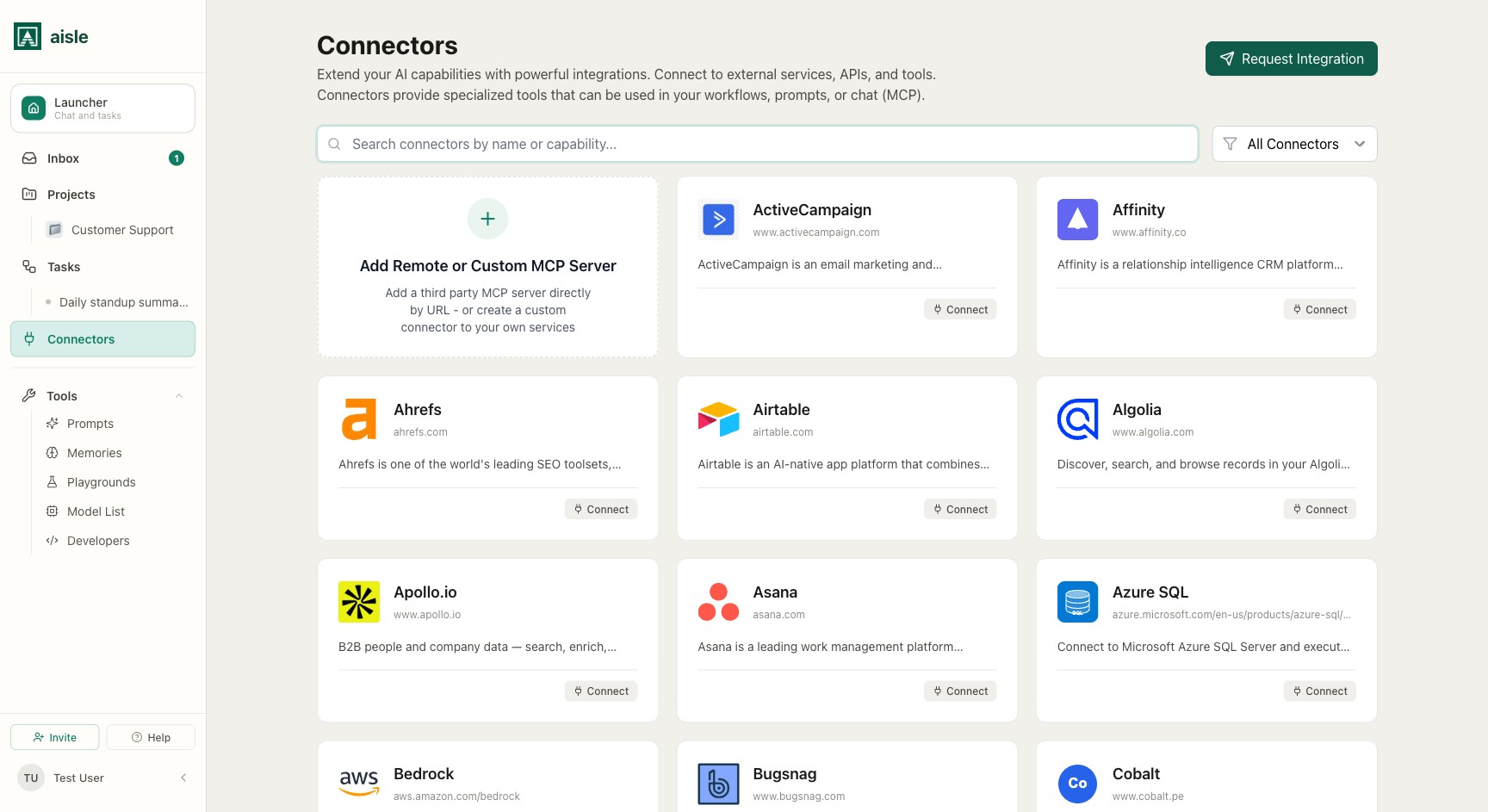
Open Connectors from the left sidebar (route /test-company/connectors). The page is a directory of every connector available to your organization. Use the search box to find one by name, and the All Connectors / My Connectors filter to switch between the full directory and the services you've already connected.
Each card shows the service and a badge for how it can be used (for example, a Task integration or a trigger). Click a card to open its detail page.
If the service you need isn't in the directory, click Request Integration in the top-right to ask the qbash team to add it.
Connecting a service
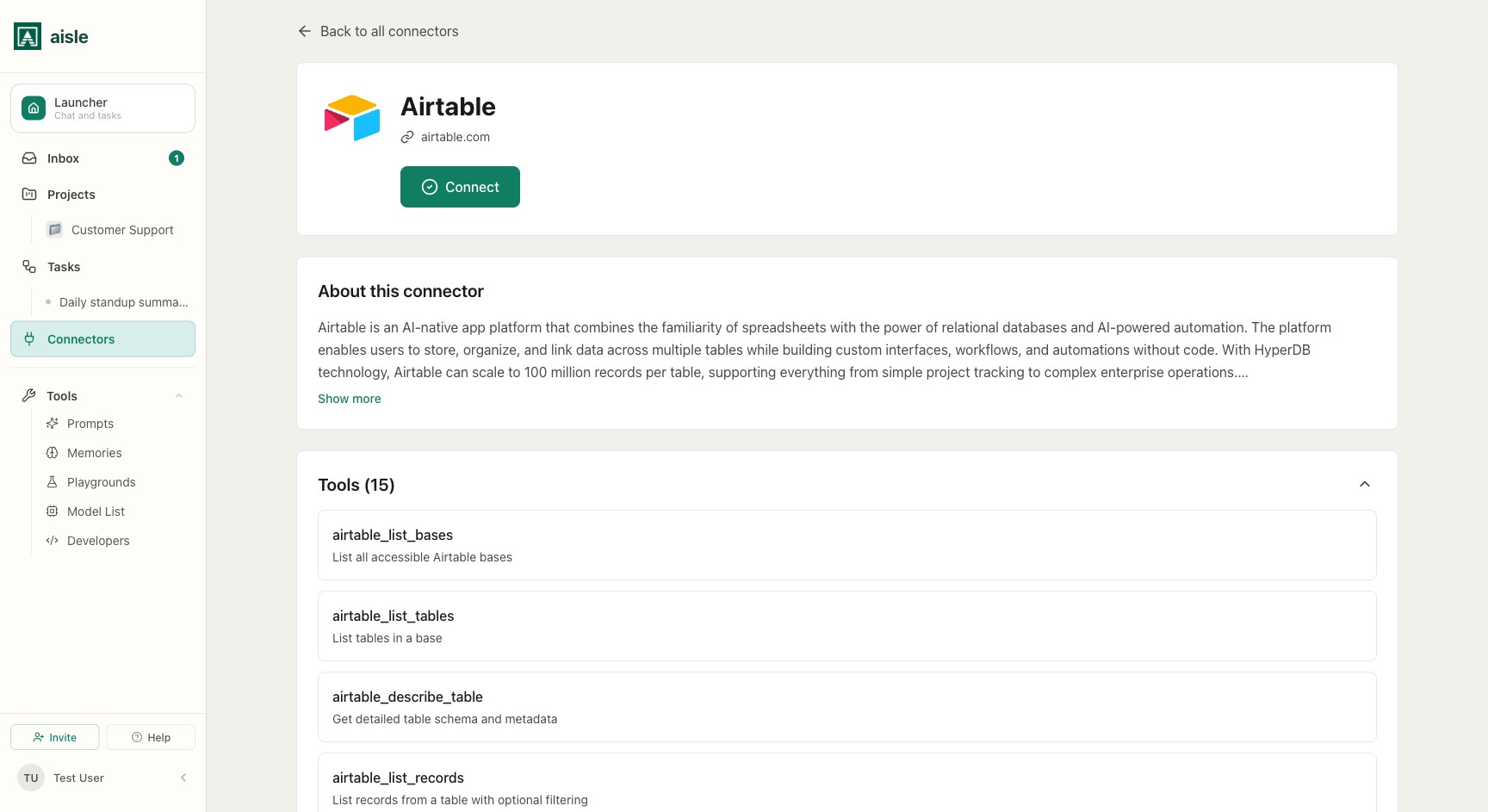
On a connector's detail page, click Connect (or Add another if you already have a connection). What happens next depends on how the service authenticates:
- OAuth - you're sent to the service's sign-in page to authorize qbash, then returned to the connector. Nothing to copy or paste.
- API key - a dialog asks for the credential the service issues, such as a bearer token or an access key ID and secret.
- No authentication - you confirm and the connection is created.
Once connected, the connection appears on the detail page and can be selected in Tasks and MCP servers.
Custom connectors
To connect a service qbash doesn't list, use the Add Remote or Custom MCP Server card in the directory (or the button on the Custom Connectors page). This connects any MCP-compatible server by URL.
| Field | Description |
|---|---|
| Name | Display name for this connection |
| URL | The MCP server endpoint |
| Transport | HTTP or SSE (Server-Sent Events) - check the server's documentation |
| Auth method | None, bearer token, API key pair, or OAuth - how the server expects to be authenticated |
Once saved, qbash connects to the server and loads its tools. The connection status shows whether they loaded successfully. A custom connector is private to you. You can authorize it for your own chats and Tasks.
Managing a connection
A connector's detail page lists your connections to that service. From there you can:
- Add another connection, or disconnect one you no longer need
- Edit or delete a custom connector
- Share a connection with teammates
- Reconnect or re-authorize when a connection needs attention (a warning shows when it does)
Organization connectors (admins)
Admins decide which connectors the whole team can use. From Org Settings → Integrations, enable a connector to make it available for members to connect their own accounts. Enabling it does not connect on anyone's behalf - each person still connects their own account from the Connectors page.