Testing and debugging
The editor has two ways to check your work. Run tests.py checks assertions against your Python code with mocked platform calls. Test run executes the current draft, including any real prompts and connected services it calls. Neither requires saving a new task version first.
Test files
Add a test file from Package → New test file. This creates tests.py alongside main.py. Write functions named test_*, with no arguments, and use Python assertions to describe the result you expect.
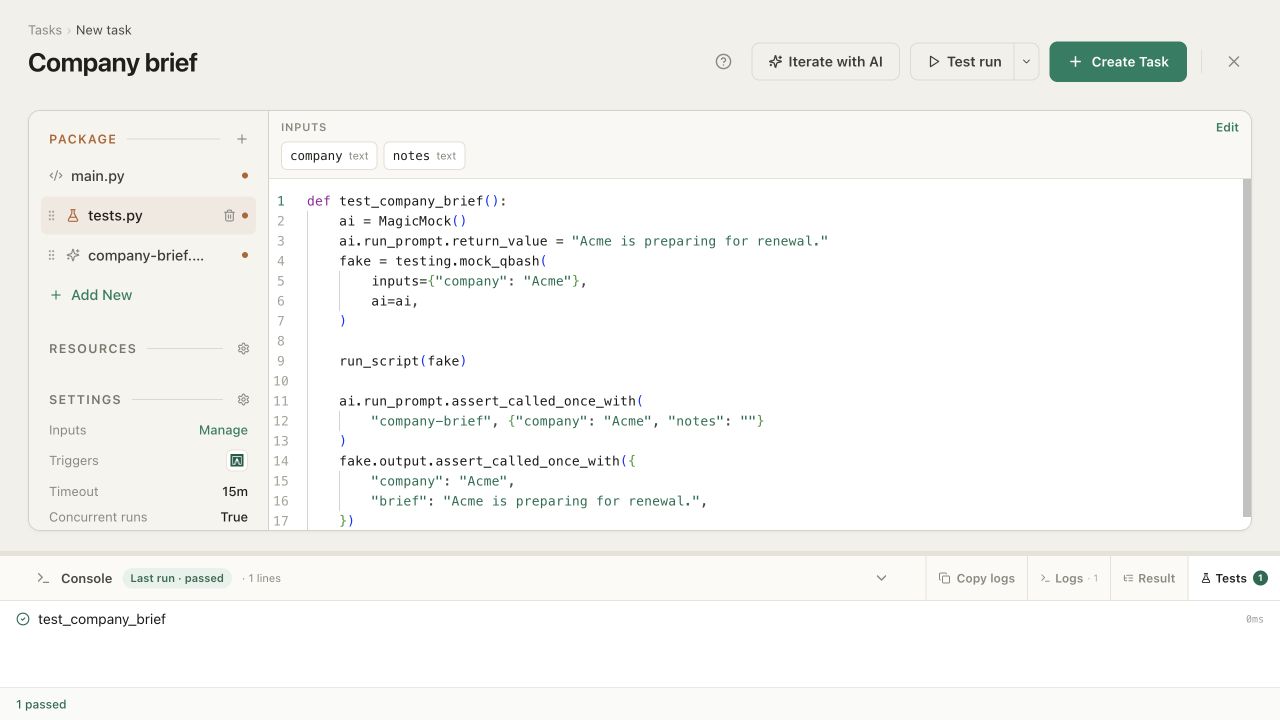
Open the arrow beside Test run and choose Run tests.py. The console's Tests tab shows each result and the pass/fail count. Failed tests expand to show the assertion or exception and its traceback. If the runner finds no test_* functions, it reports that no tests ran.
Testing Python helpers
Test files are useful for parsing, calculations, and validation. Helpers defined in main.py are available directly in tests.py; the runner loads their definitions without running the rest of main.py. Helpers in additional Python files can be imported through aisle_scripts.
For example, the company.py helper in the SDK reference trims whitespace from a company name. A test file can import that helper and check its behavior:
from aisle_scripts import company

def test_normalize_name():
    assert company.normalize_name("  Acme  ") == "Acme"

def test_empty_name():
    assert company.normalize_name("   ") == ""
Testing the whole script
run_script(fake) runs all of main.py with a fake qbash namespace. testing, run_script, and MagicMock are already available in tests.py; you don't need to import them.
For the company-brief script in Intro and editor, this test supplies a fixed prompt response and checks both the prompt inputs and the returned result:
def test_company_brief():
    ai = MagicMock()
    ai.run_prompt.return_value = "Acme is preparing for renewal."
    fake = testing.mock_qbash(
        inputs={"company": "Acme"},
        ai=ai,
    )

    run_script(fake)

    ai.run_prompt.assert_called_once_with(
        "company-brief", {"company": "Acme", "notes": ""}
    )
    fake.output.assert_called_once_with({
        "company": "Acme",
        "brief": "Acme is preparing for renewal.",
    })
The prompt isn't sent to a model. Calls to AI, HTTP, integrations, and other external services must be explicitly mocked; an unmocked call fails the test instead of reaching the service. Use this to check how your code handles a response or an error. It doesn't tell you whether the real prompt produces a good answer or whether a connected account has the right permissions.
Test runs
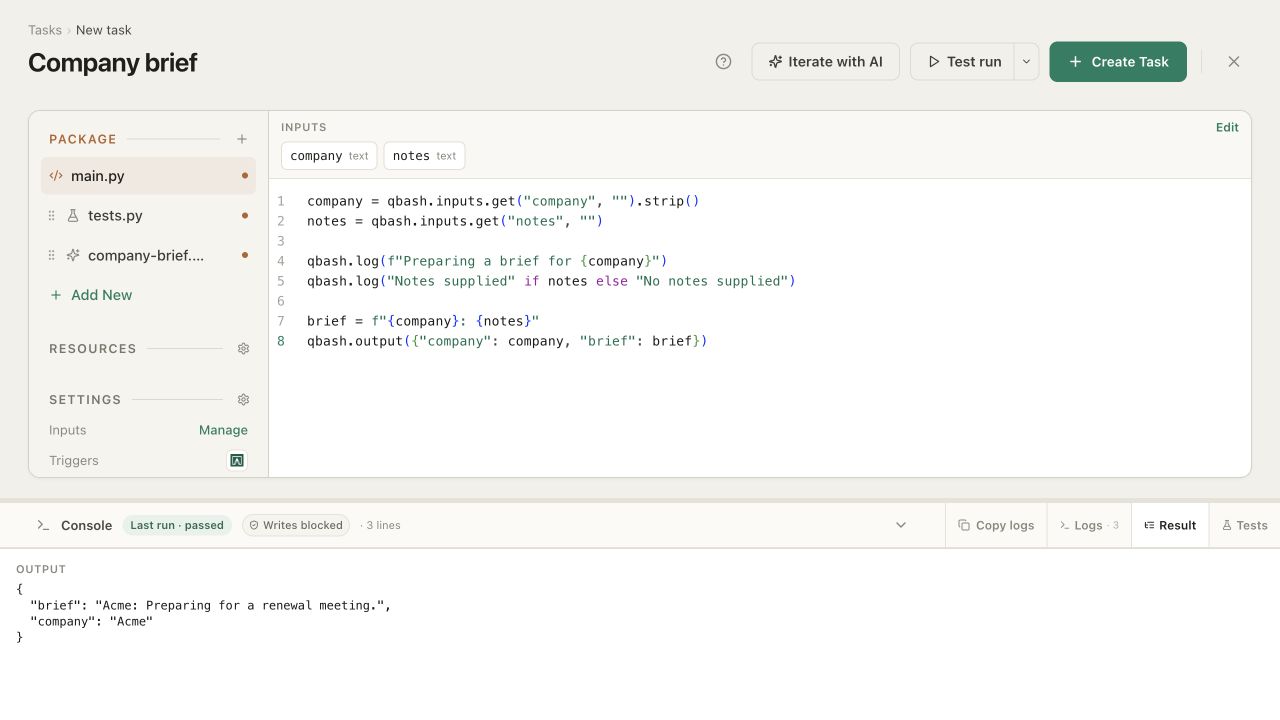
Test run executes main.py from the current editor draft, using its current prompts, files, and attached resources. It does not run tests.py. If the task declares inputs, clicking Test run opens a dialog where you enter their values and choose Run Task. Without inputs, the run starts immediately.
The console opens beneath the editor and follows that run. You can change the code or inputs and run it again without saving those edits to the version used by other callers.
Unlike the mocked tests, a Test run makes real model calls and reads connected data when your code asks it to. Those calls can incur usage charges.
Writes are blocked by default. An attempted message, CRM update, or other write appears as not sent, so you can inspect it without changing the destination. This also covers memory and cache writes, non-read HTTP requests, and writes through linked tasks or agent tools. If the code needs the result of a blocked write to continue, the run stops with Stopped · write not sent.
Choose Test run (allow writes) from the arrow menu when you need to test those changes too. After confirmation, that one run can make real changes in connected systems. The next ordinary Test run blocks writes again. qbash.run.is_test is True in both modes; it doesn't indicate whether writes are allowed.
Run console
Logs shows progress in order, including your qbash.log(...) messages, connected operations, prompt responses, and agent tool calls. Expand an entry to inspect its details. Result shows the value passed to qbash.output(...); Tests shows results from Run tests.py.
For the company brief, check what was passed to company-brief and what it returned. With Agent mode enabled, the console also shows the model turns and tool results. This helps distinguish a problem in the prompt's answer from a problem in the Python code that uses it.
Use qbash.log(...) for details you want to follow while editing, such as which company is being processed or whether notes were supplied. Copy logs copies the run's log entries when you want to investigate them with the development agent.
Saved-run logs, versions, and runtime settings are covered at the end of Intro and editor.