Distribution
You can build a task once and make it available to AI assistants and other applications, or share a run form in qbash. It can also run on a schedule or respond to an event.
Where the task starts does not have to be where its result goes. A scheduled company brief could arrive in chat, an email could start a task that posts to Slack, or an API caller could receive the result directly. Your code controls what happens and where the result is delivered.
MCP and AI chat
An MCP server makes your task available as a tool in applications such as ChatGPT, Claude, Codex, and Cursor. The assistant sees the task's description and inputs, calls it when needed, and uses its result in the conversation.
A teammate could ask their assistant for a company brief. The assistant supplies the company name and any notes; qbash runs the task and returns the brief. The teammate does not need to open the task editor or know how it was built.
Save the task, then use the MCP servers section under Settings → Triggers to open its server connections or add it to a server. Task selection is managed on the server, which controls which tools are available and who can use them. Connect that server to the AI application. MCP servers covers setup and access.
Give the task a description that explains when to use it and what it returns, so the assistant can choose it appropriately.
API and webhooks
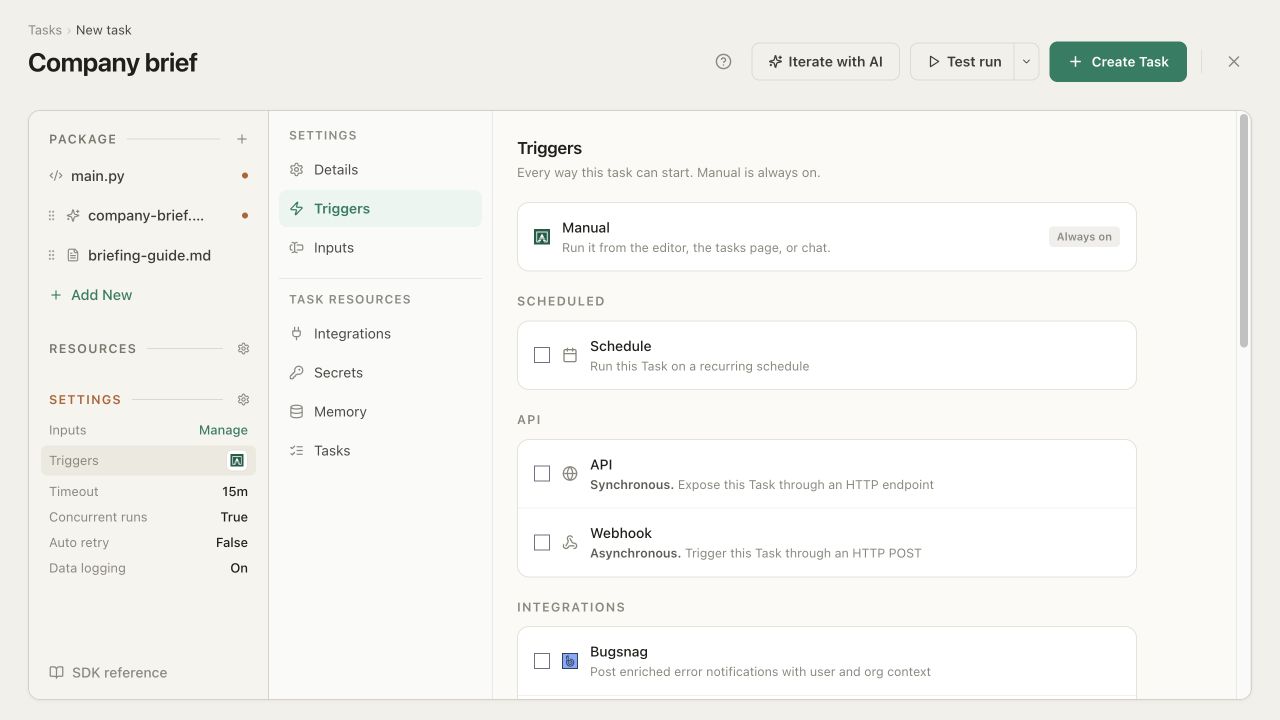
Settings → Triggers → API contains two HTTP options: API - Synchronous and Webhook - Asynchronous. Both accept a POST with task inputs. The difference is whether the caller waits for the task's result or receives an acknowledgement while the task continues in the background.
Synchronous API
Use API when the calling application needs the answer in the same request. qbash runs the task and returns the value set by qbash.output(...) in the response's result field. For the company brief, the request body might be:
{
  "company": "Acme",
  "notes": "Preparing for a renewal meeting. The team wants to discuss onboarding."
}
The panel provides the endpoint and a request example. Select one or more organization Secrets as API tokens; Using Secrets explains how to create or generate one. Callers send a selected token as a bearer token:
Authorization: Bearer <token>
Content-Type: application/json
A token per caller lets you revoke one application's access independently. Server-sent events are available for clients that display progress while waiting. The connection still needs to remain open, so use the asynchronous option when the work may outlast the caller's request timeout.
Asynchronous webhook
Use Webhook when the sending system should not wait for the work to finish. qbash accepts the request, queues the task, and immediately returns 202 Accepted with an entrypoint_run_id. That response means the request was accepted, not that the task succeeded, and it does not contain the final result.
Under Completion Callback, you can provide a URL for qbash to POST the outcome when the task finishes. The callback identifies the run and contains its status, timing, and either the result or an error. Alternatively, the task can deliver the brief to chat or another destination itself.
Webhook requests can be public or verified using an HMAC organization Secret. A configured callback secret signs the outgoing callback separately. Verify callback signatures and handle repeated deliveries; if a request could post the same brief twice, the task needs to account for that too.
Run form in qbash
The task's page provides an on-demand run form. Its fields come from the inputs defined in the editor, so someone using the company-brief task only needs to supply a company name and any meeting notes.
This is useful for occasional requests or for sharing an automation with colleagues who do not need to edit it. Progress and the returned result appear with the run.
Connected triggers
The Integrations group in Triggers starts tasks from events in connected services. Available sources include:
| Source | What can start the task |
|---|---|
| Slack | Messages and mentions |
| Microsoft Teams | Messages posted in a channel |
| Telegram | Bot messages and events |
| Gmail and Outlook Mail | New email found during a polling check |
| GitHub | Pushes, pull requests, releases, and other configured webhook events |
| Jira | Issue and comment events |
| Bugsnag | Error notifications |
| Likes, comments, and shares on a company page | |
| Google News and SERP | New articles matching monitored topics or keywords |
Each trigger has its own connection, event, and filtering options. Some services send events directly; polling triggers check periodically for new items. A task can have several triggers.
The event data is available through qbash.inputs. For example, a GitHub trigger can supply the repository and pull-request details, while a mail trigger supplies messages. Match the fields your code expects to those supplied by the trigger; an event does not necessarily use names such as company or notes.
A trigger starts the task but does not decide where to send its answer. A Slack mention could return a reply to Slack, create a chat, or update a record, depending on what your code does.
Schedules
A schedule runs the task at recurring times in a timezone you choose. It supplies the inputs, so no person or application needs to send a request at that moment.
For example, a saved company name and set of notes could produce a brief before a weekly meeting. A task can have several schedules with different times and input values. Check the concurrent-run setting if one run might still be working when the next starts.
Delivering results
qbash.output(...) sets the value returned to the caller. A task can also deliver something elsewhere in the same run. For the company brief, qbash.create_chat("Company brief", brief) creates a chat containing the answer. By default it is a read-only result; you can allow follow-up conversation by selecting a model or a Project and enabling replies.
The create_chat reference explains recipients, sharing, files, and follow-up settings. This is useful for scheduled work: the person receiving the brief can read it in chat rather than looking through run logs.
An integration call can also post the brief to Slack or Teams, send an email, or save it in a connected service. If the task is configured as the generator for a Project or Site page, its output can publish the next edition of that page. The output reference covers page formats.
Access and credentials
Task access controls who can open or run it in qbash. API and webhook secrets authenticate external callers, while MCP servers manage access for their connected clients.
The task uses the accounts selected under Resources. People can use the automation without receiving the CRM credentials or other secrets behind those connections. Its actions remain limited by the permissions of those accounts.