Connect Notion
Tasks call Notion through qbash.integrations.notion with a token from Notion's Developer tools. Notion issues two kinds, and qbash accepts either one.
After you connect Notion, you can add its tools to a qbash MCP server for ChatGPT, Claude and other MCP clients, or call it from a Python task. The Notion MCP server page lists what the connector can do.
| Personal access token | Connection token | |
|---|---|---|
| Reaches | Every page and database you can see | Only the pages and databases you add it to |
| Setup | Create the token | Create the connection, then add it to each page |
list_users | Not allowed | Allowed when user information is turned on |
A personal access token is the quickest way to start. A connection token suits a task that should only reach one database.
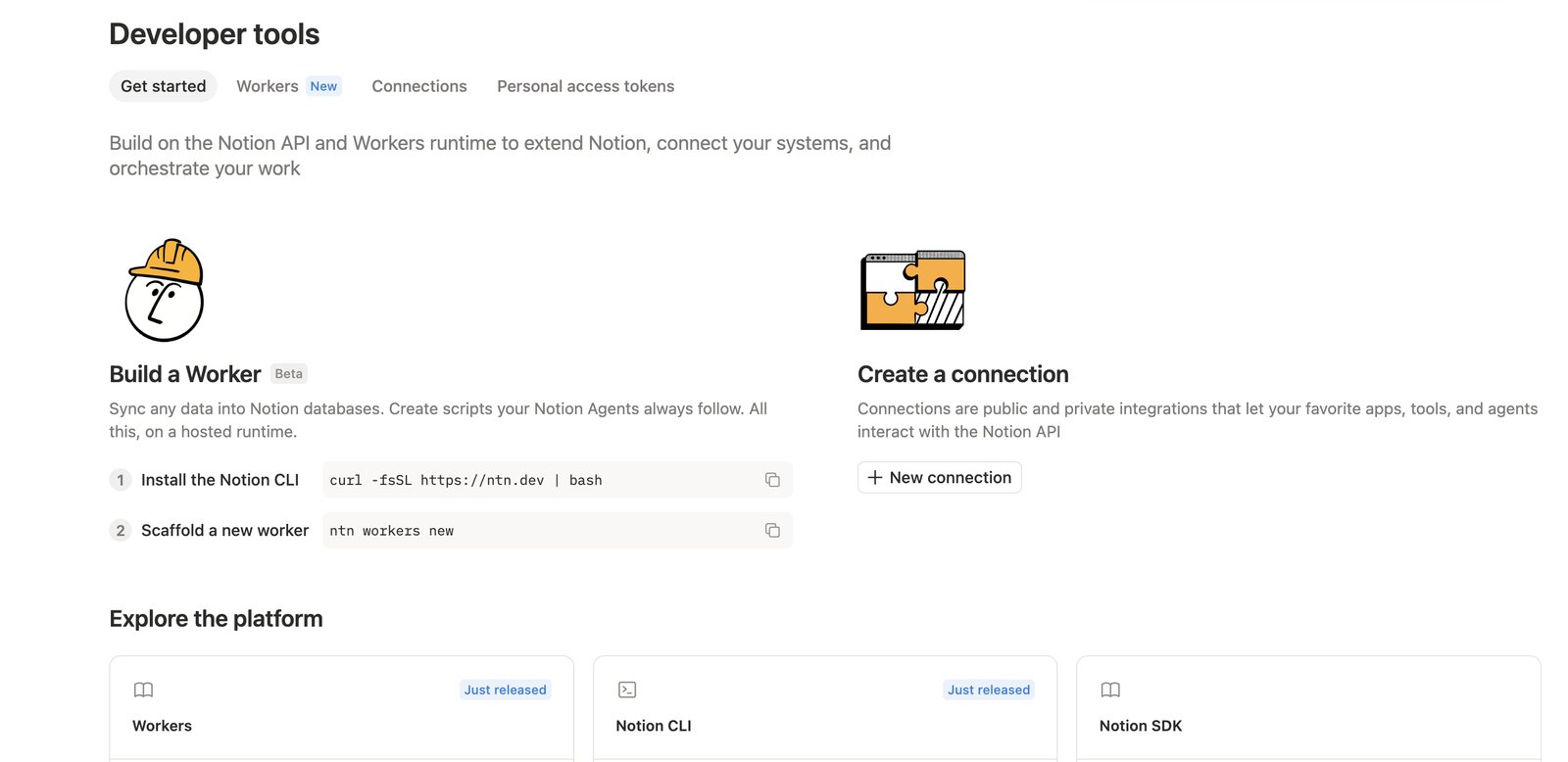
Create a personal access token
- In Notion, open Developer tools.
- Open Personal access tokens and create a token for your workspace.
- Copy the token.
The token acts as you, so a task can read and edit anything you can. Notion does not let personal access tokens list workspace users, so list_users returns a 403 with this kind of token.
Create a connection token
- In Developer tools, open Connections and click New connection. Choose an internal connection for your workspace.
- Turn on read, update and insert content. Turn on user information as well if a task calls
list_users. - Copy the connection's token.
- Open each page or database a task will use, choose Connections from the ••• menu, and add the connection. Adding a parent page also adds the pages under it.
Calls to anything the connection has not been added to return 404, and those pages do not appear in search.
Add the token in qbash
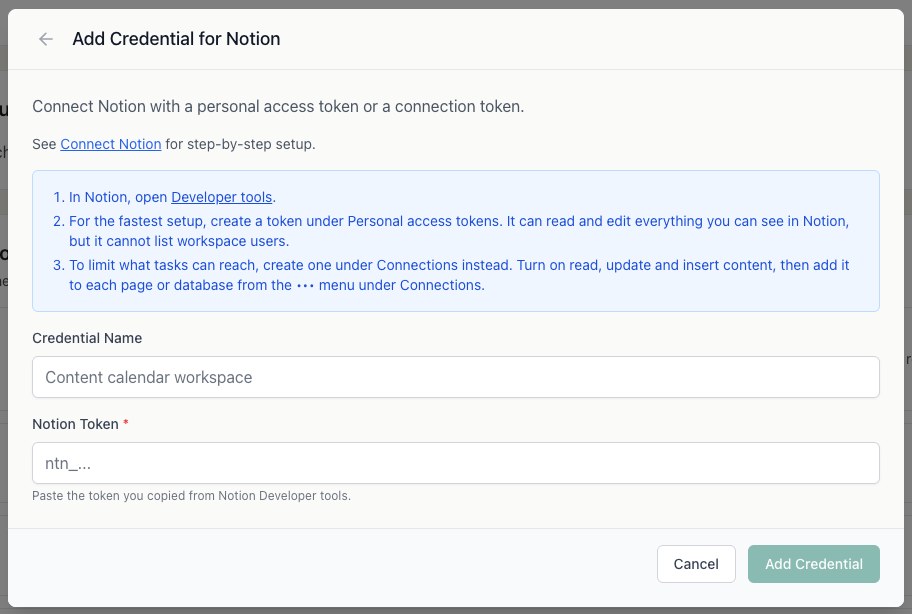
- Open Connectors, then Notion, and click Connect.
- Give the credential a name and paste the token.
- In the task editor, open Resources → Integrations, and select the credential. See Connect resources.
Call Notion from a task
found = qbash.integrations.notion.search(query="Content calendar", object_type="data_source")
source_id = found["results"][0]["id"]

rows = qbash.integrations.notion.query_data_source(
    data_source_id=source_id,
    filter={"property": "Status", "status": {"equals": "Ready"}},
)
for page in rows["pages"]:
    print(page["title"], page["properties"])
Notion now calls a database's rows a data source. query_data_source takes either data_source_id or database_id, and looks up the first data source when you pass a database. Rows come back with plain values keyed by property name, and create_page and update_page accept the same values. get_page_content returns a page body as markdown. The SDK Reference lists every method.
Details that affect results
- Notion allows about three requests a second. qbash retries a rate-limited call after the wait Notion asks for.
searchmatches titles only.- A 403 for one call leaves the credential working for every other call.