Connect WordPress
Tasks read and write WordPress posts, pages and comments through qbash.integrations.wordpress. How you connect depends on where the site runs:
After you connect WordPress, you can add its tools to a qbash MCP server for ChatGPT, Claude and other MCP clients, or call it from a Python task. The WordPress MCP server page lists what the connector can do.
| Where the site runs | How to connect |
|---|---|
| WordPress.com, any plan | Sign in with WordPress.com and pick the site |
| Self-hosted WordPress, a multisite subsite, WordPress VIP | Application password |
| WordPress.com Business or Commerce with plugins | Either. Sign in with WordPress.com to get site stats as well |
Both give a task the same methods, apart from get_stats, which needs the WordPress.com sign-in. A credential covers one site. Add another credential for each extra site.
Connect a WordPress.com site
- Open Connectors, then WordPress, and click Connect.
- Choose WordPress.com and click Connect with WordPress.com.
- Sign in to WordPress.com if asked, pick the site, and click Approve.
The credential can do what your WordPress.com account can do on that site. An Editor or Administrator account reaches every method. To disconnect qbash, remove the credential here, or open Security, then Connected applications in your WordPress.com account settings.
Connect a self-hosted site
The site needs WordPress 5.6 or later and HTTPS. qbash signs in as a WordPress user with an application password, so the credential has that user's role.
Create an application password
- In wp-admin, open Users, then Profile. Use an Editor account if a task updates posts or moderates comments. An Author can create and edit only their own posts.
- Scroll to Application Passwords, enter
qbashas the name, and click Add New Application Password. - Copy the password. WordPress shows it once. The spaces in it are fine to paste.
If the Application Passwords section is missing, something on the site has turned the feature off:
- Wordfence turns it off by default. Open Wordfence, then All Options, then Brute Force Protection, and clear Disable WordPress application passwords.
- Solid Security and other hardening plugins have a similar setting.
- A site served over plain HTTP does not offer application passwords.
On WordPress.com Business or Commerce, open the site's own wp-admin and turn on hosting features first. The application passwords in your WordPress.com account security settings are a different kind and do not work here.
Check the password
Run this before adding the password to qbash. It returns your user as JSON when the password works:
curl --user "USERNAME:APPLICATION PASSWORD" "https://example.com/wp-json/wp/v2/users/me?context=edit"
A 401 with the code rest_not_logged_in means the request arrived without its login. Some hosts and security plugins strip the Authorization header before WordPress sees it. Ask your host to pass it through, or look for a setting in the plugin.
Add the password in qbash
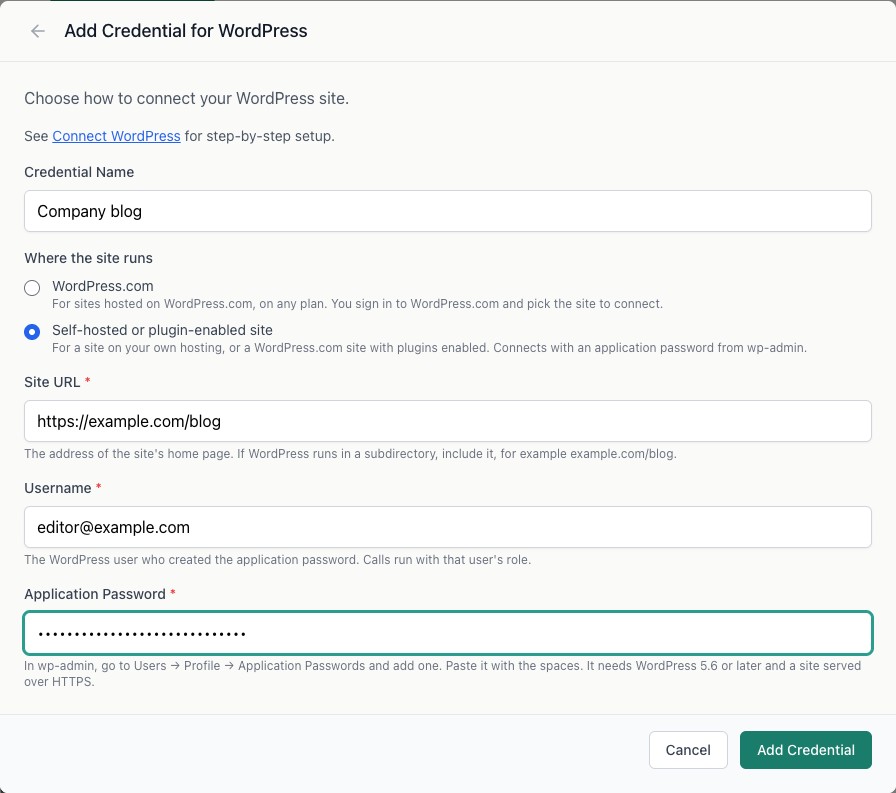
- Open Connectors, then WordPress, and click Connect.
- Choose Self-hosted or plugin-enabled site.
- In Site URL, enter the address of the site's home page, for example
https://example.comorhttps://example.com/blogfor a site in a subdirectory. Use the address the site ends up on after any redirect, including whether it starts withwww. qbash does not follow redirects, and the error names the address to use. - In Username, enter the login or email of the account. Paste the password into Application Password. qbash checks them with the site before saving.
Use the credential in a task
In the task editor, open Resources → Integrations, and select the credential. See Connect resources.
posts = qbash.integrations.wordpress.list_posts(status="publish", limit=20)

for post in posts["posts"]:
    print(post["id"], post["title"], post["link"])

qbash.integrations.wordpress.create_post(
    title="Weekly roundup",
    content="<p>Drafted by a task.</p>",
)
create_post saves a draft unless you pass status="publish". List methods take cursor and return next_cursor. To pick up changes since the last run, pass modified_after and sort by modified, because page numbers move when posts are added during a run. The SDK Reference lists every method.
Firewalls such as Wordfence and Cloudflare bot protection can block requests from cloud servers. If a task gets an HTML page back in place of data, allow qbash's requests to /wp-json/ in the firewall.
Add test data
InstaWP creates a temporary WordPress site with HTTPS in about a minute, which is enough to try the connector. qbash cannot reach a site on localhost. For a site that stays up, use a staging site on your host.
On the test site:
- Open Settings, then Permalinks, and choose Post name.
- Create an Editor user and an application password for it.
- Add three published posts and give each a category, a tag and a featured image. Then add one draft post, a page with a child page, and one image in the media library.
- Approve two comments and leave a third pending. A comment posted while logged out is held for moderation by default.